From clipboard to mobile: digitizing vehicle inspections
Replacing paper inspections of new vehicles arriving from the factory with iOS and Android apps that make tracking and auditing fast and searchable.
EXPERIENCE GAP(s) and OBJECTIVE
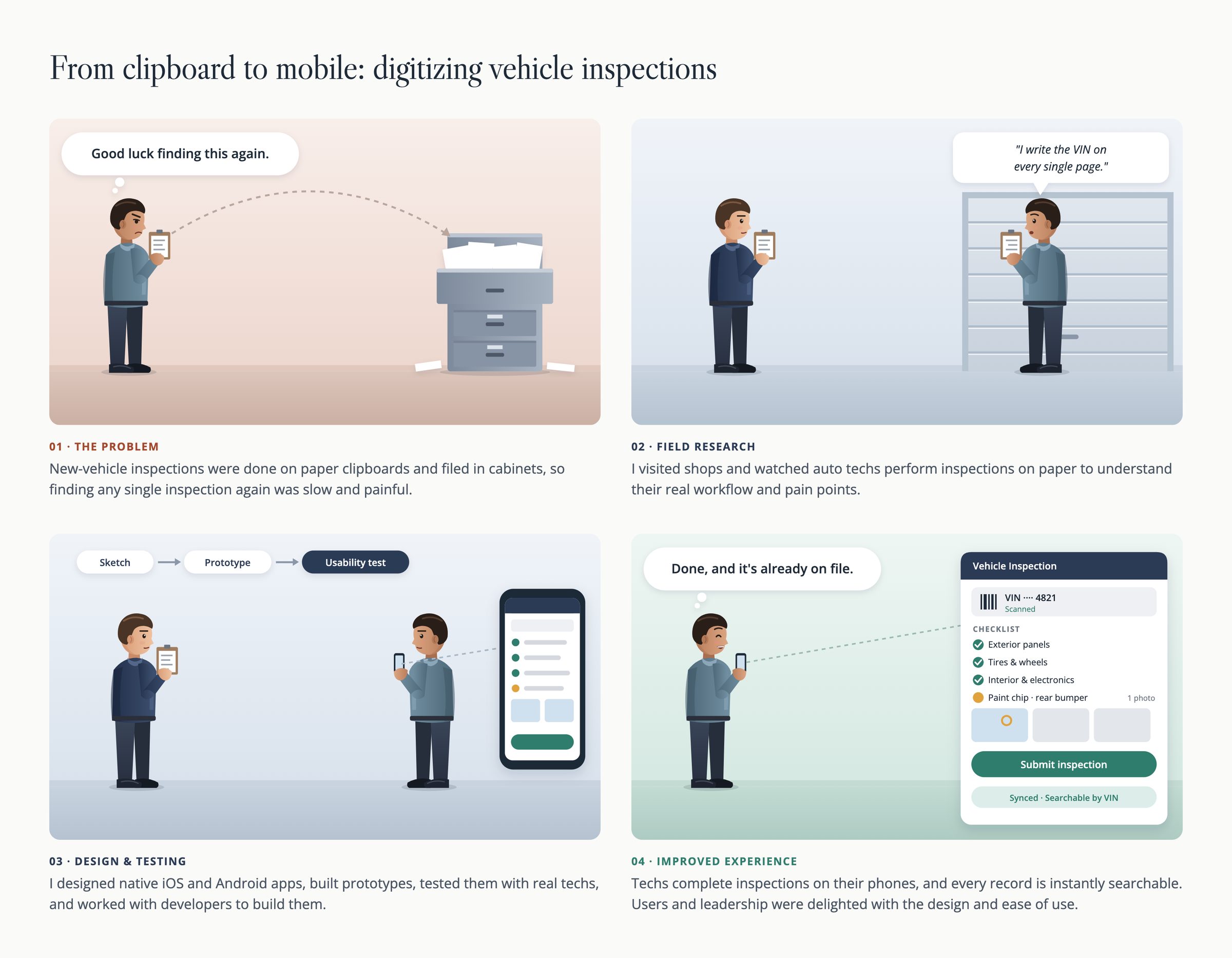
New-vehicle inspections were done on a paper form on a clipboard. A technician walked around each car, checked off items, and left notes by hand. The forms were then filed in cabinets, so finding any single inspection again was slow and painful.
There was no easy way to track inspections or audit them, and the same details, such as the VIN, were written out again and again.
Objective
Replace the paper form with a mobile app that technicians find fast and easy to use, and that makes every inspection trackable, auditable, and searchable.
As the lead UX designer, researcher, and strategist, I worked with the project team to understand the ask, the objectives, the desired outcomes, and the people who would use it.
Measuring Success
Success in the short-term was measured by creating the digital app version of the paper inspection form. Long-term, the time to find an inspection would be monitored and measured, and the satisfaction of using the app by technicians would be tracked. This would ultimately lead to product enhancements and process improvements.
From paper to phone
Before: paper
- Walk around the car
- Check items and write notes on a clipboard form
- File the paper in a cabinet
- Dig through cabinets to find one inspection
After: mobile app
- Scan the VIN
- Work through the checklist
- Add notes and photos
- Submit and sync
- Search any inspection by VIN
OUTCOMES and IMPACT
I delivered a tested, signed-off design that technicians and leadership were delighted with, and I guided both development teams through the build of two native apps. Projected impact of new digital inspection apps:
APPROACH, EFFORT, and ARTIFACTS
I led the user experience from the first conversation through the build, as the researcher, designer, and strategist on the project.
Align with the team
I met with the project team to understand the ask, the objectives, the outcomes they wanted, and who the users were, so the research and design were pointed at the right problem from the start.
Observe the real process
I visited multiple locations where technicians inspect vehicles, watched the paper process in action, and interviewed technicians about how it works today and where it gets in their way.
Sketch, then wireframe
I started with sketches on whiteboards and paper, then turned them into digital wireframes and shared them with the project team, including the product manager and developers.
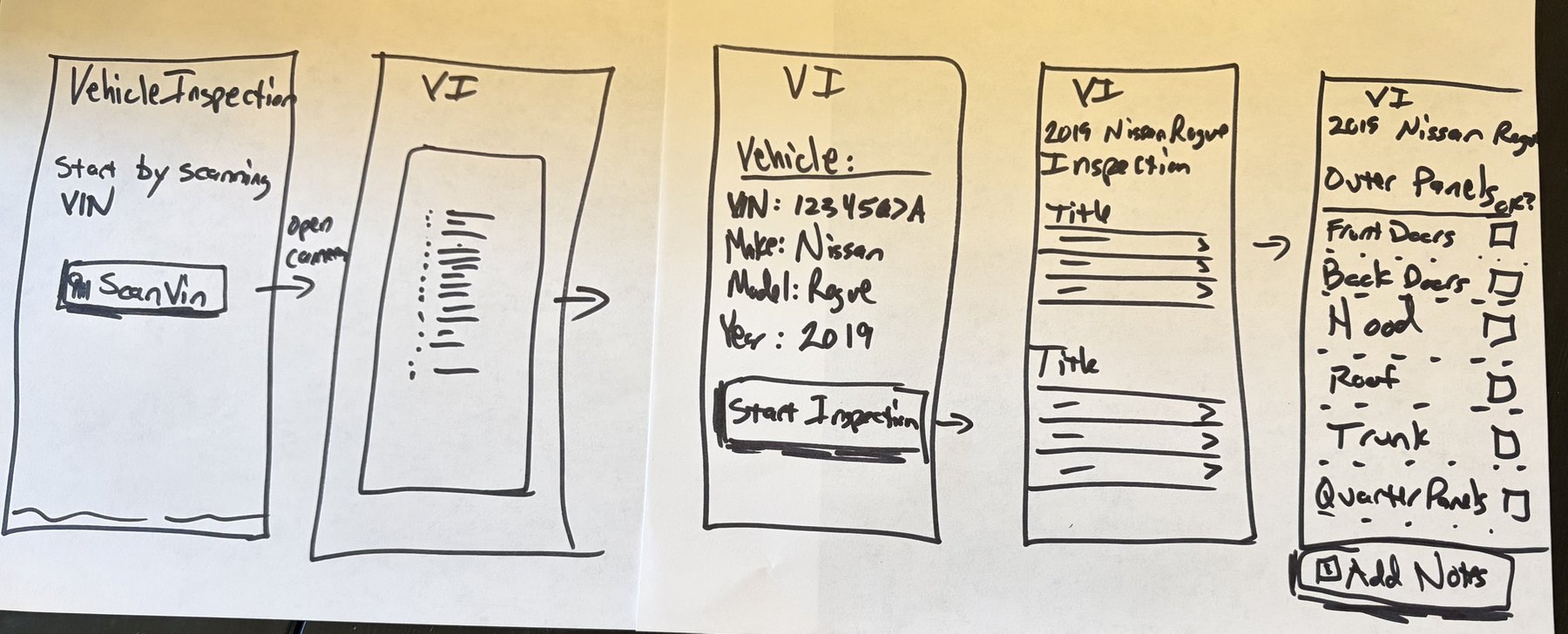
From there I moved to high-fidelity screens built on Material Design patterns. The inspection view shows the vehicle's details and the sections of the inspection, each a short list with a caret to open it. Inside a section, each item has a checkbox, with Add Notes and Save always within reach at the bottom.
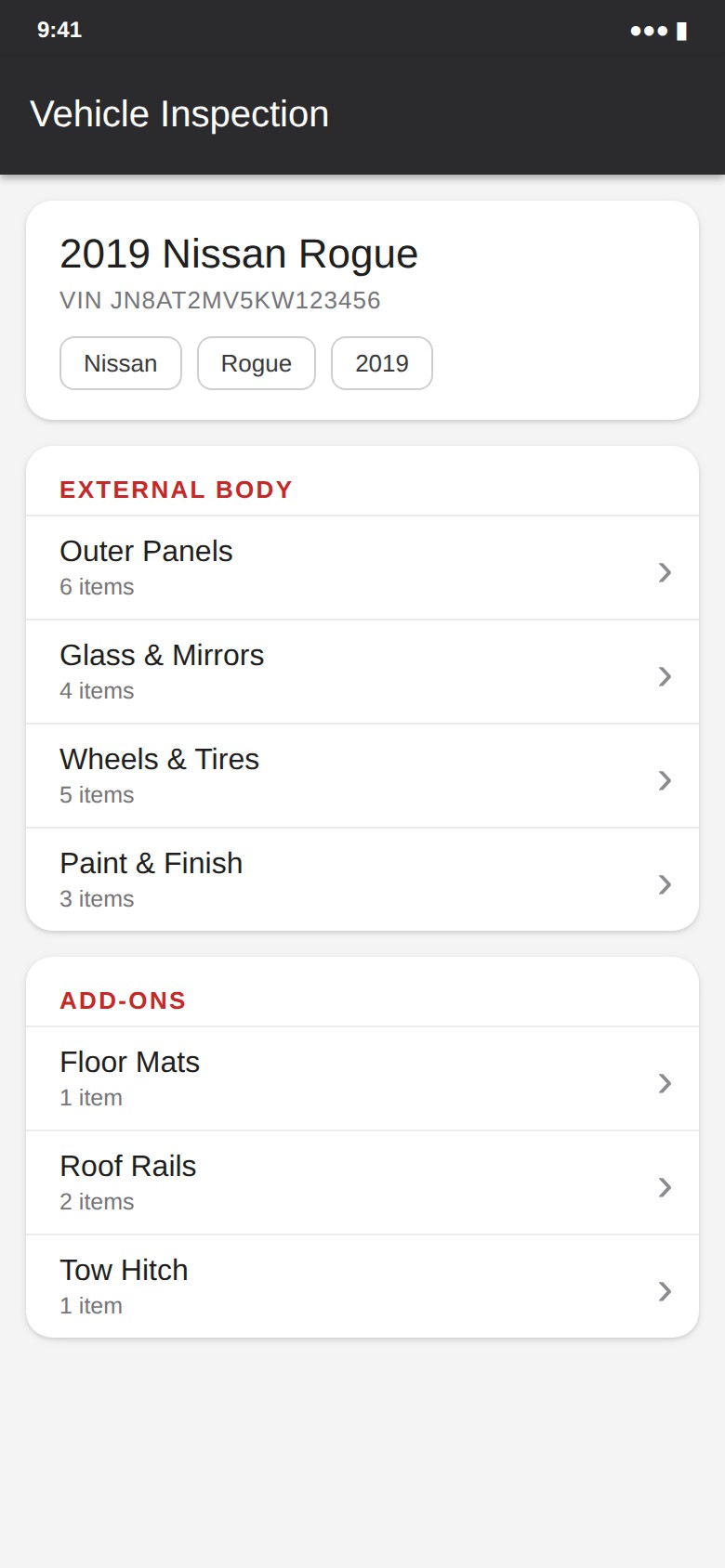
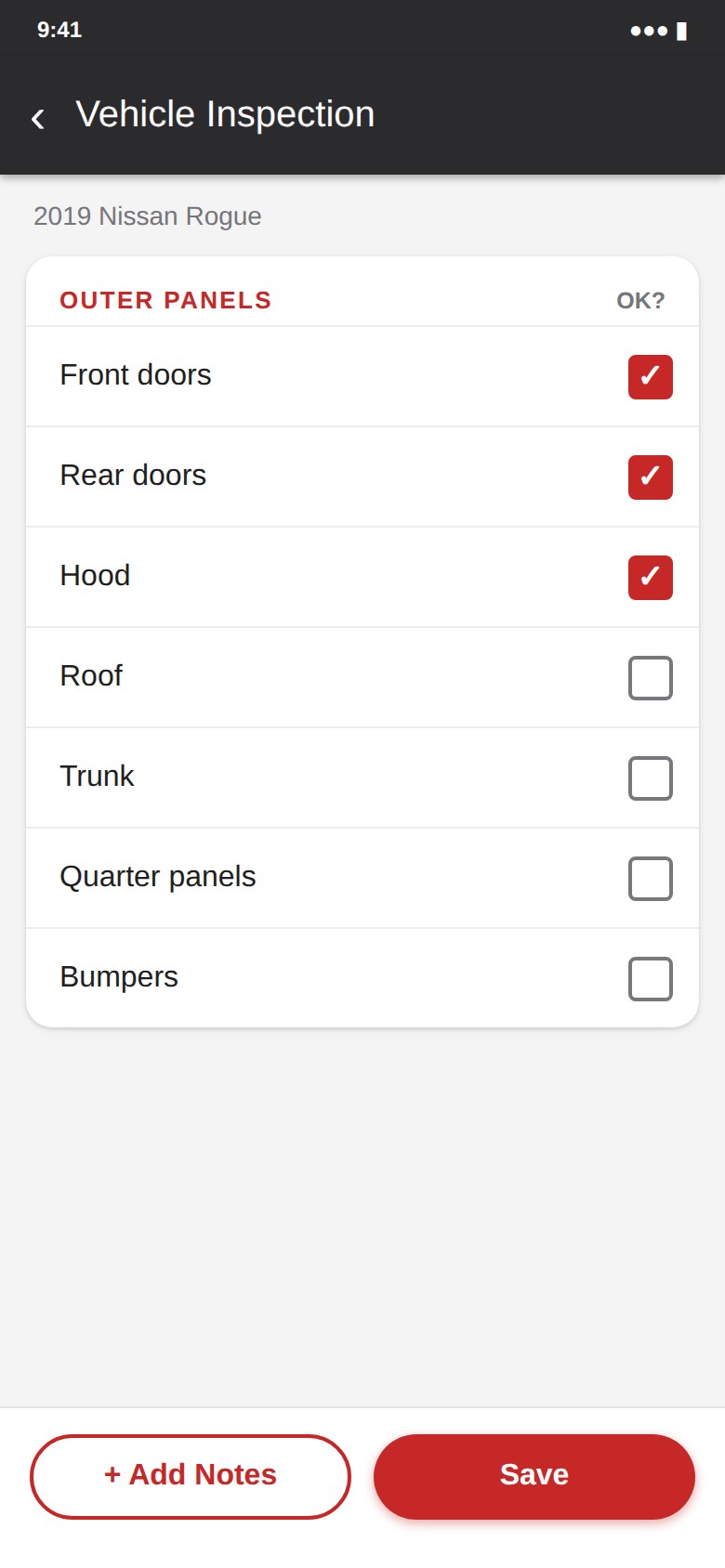
The actual app screens are proprietary. These images are representative samples with fictional data, created for this portfolio.
Explore beyond the checklist: a tablet concept
Alongside the phone design, I explored a different way to inspect a car on a tablet. Instead of working down a list, the technician sees a 3D model of the vehicle and rotates it with a finger. Tapping a section in the What to Inspect panel, such as Exterior, Wheels/Tires, then Left Front, brings that part of the car into view and opens a short form for recording damage. The vehicle details and Submit Inspection stay in view the whole time.
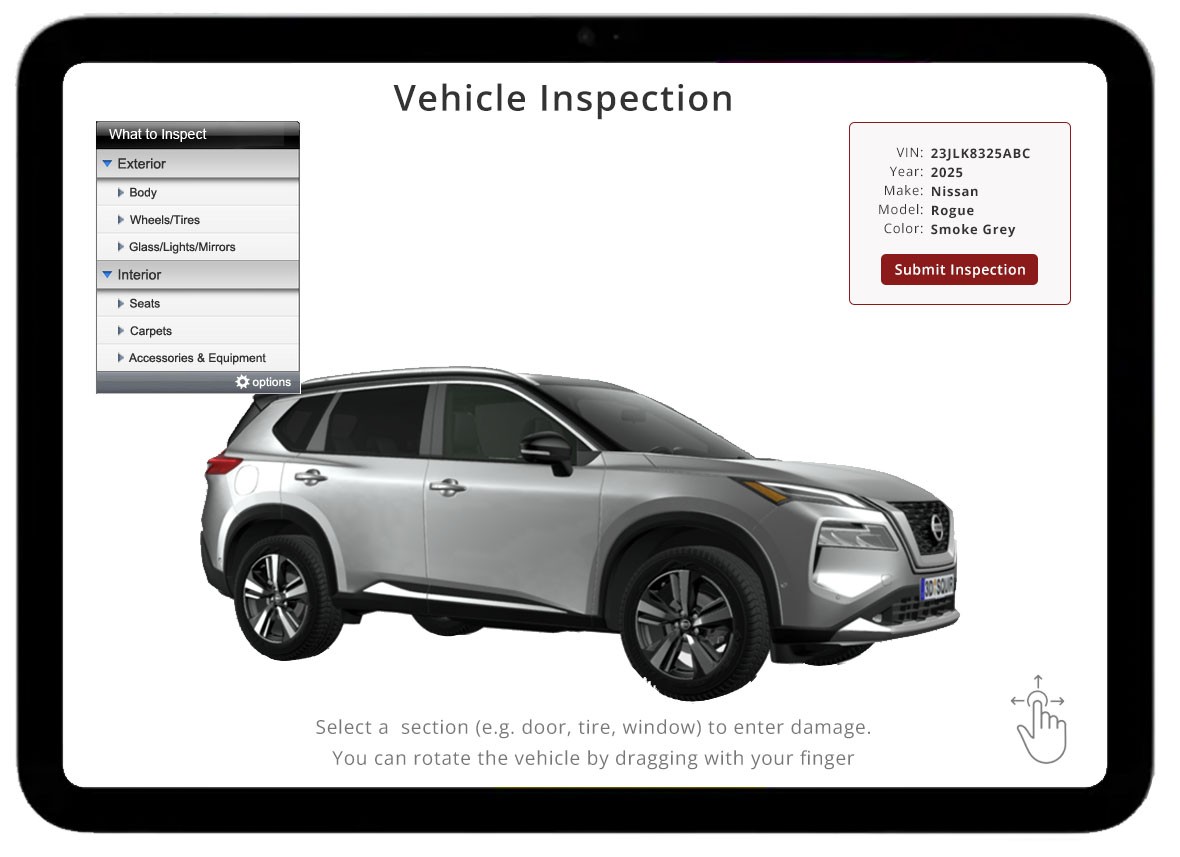
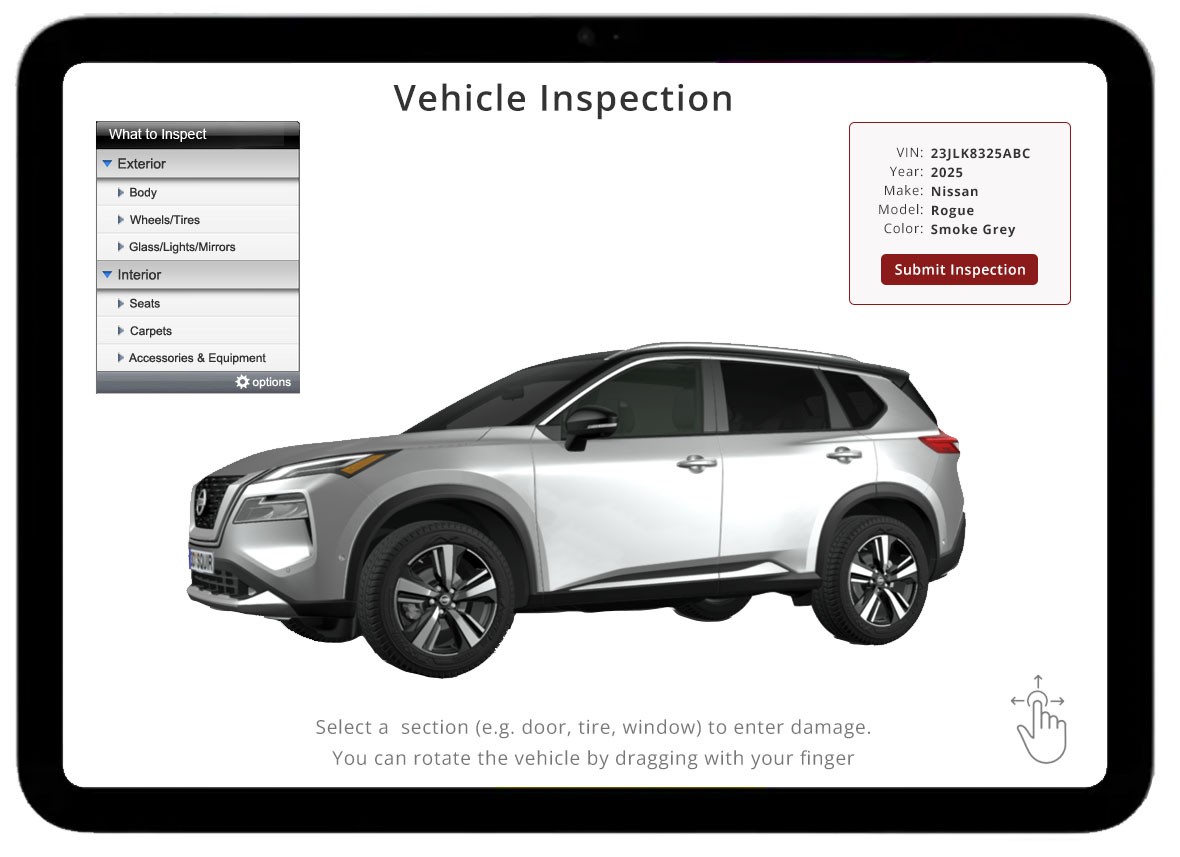
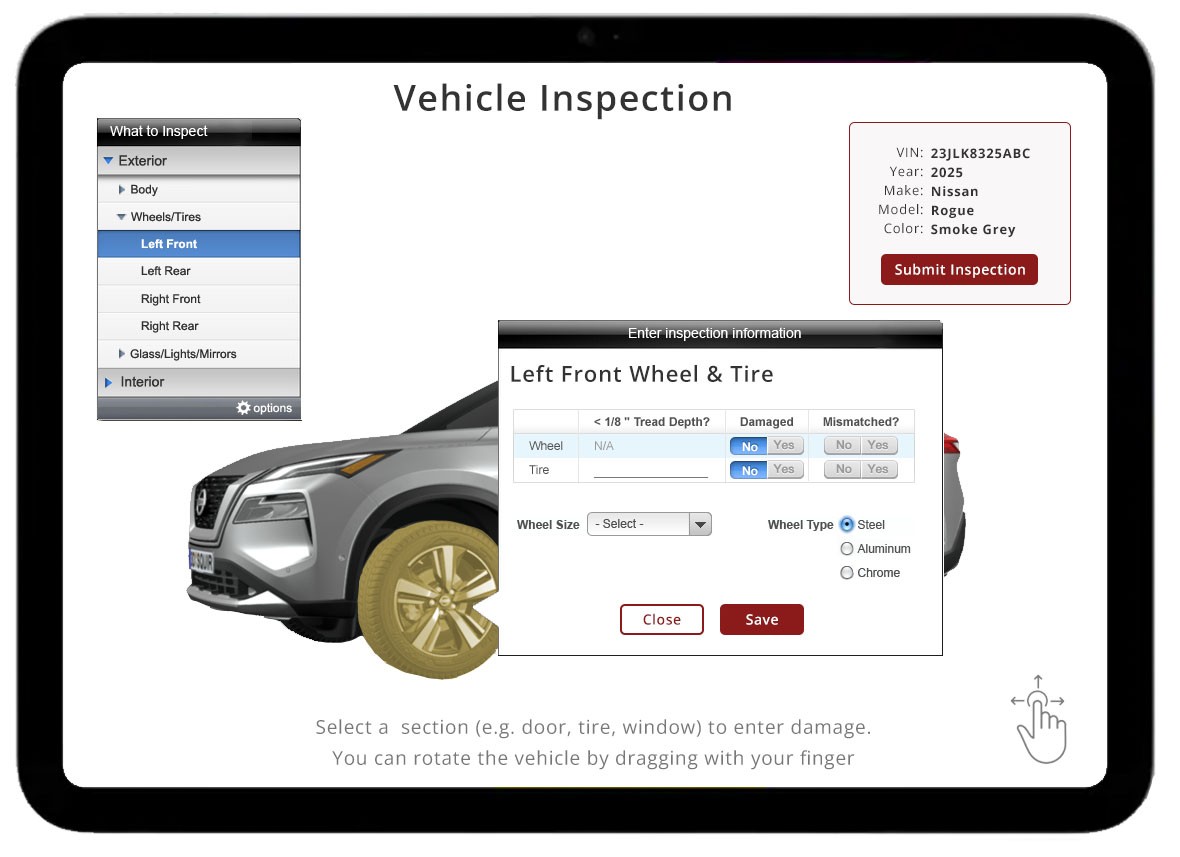
This was a concept I explored to test ideas for interacting with the vehicle and recording damage. The product direction was a phone app, so the tablet version was not built. The images use fictional data and are not the actual UI.
Prototype and test
I built a high-fidelity interactive prototype in Axure so everyone could see and feel how the finished app would look and behave. After iterating with the team and getting manager sign-off, I shared the prototype with technicians for feedback and iterated again.
Stay close through the build
Two separate native apps were built, so I designed to the standard iOS and Android design systems. I worked with both developers throughout the build, answering questions about design, flow, and interaction, and giving guidance wherever the prototype left a gap or an ambiguity.
- Notes and findings from field visits and technician interviews
- Whiteboard and paper sketches
- Digital wireframes for the product team and developers
- Tablet concept exploring a 3D vehicle model as the way to choose what to inspect
- High-fidelity interactive prototype in Axure
- Ongoing design guidance for the iOS and Android developers
LEARNINGS
- Watch the work before designing it. Seeing technicians inspect cars in person showed how the paper process really worked, and that shaped every screen.
- A prototype is a conversation tool. Showing the team, then the technicians, something that behaved like the real app surfaced feedback early, when changes were cheap.
- Stay available during the build. Questions and gaps always appear once developers start, and being close to both teams kept the design intact across two platforms.